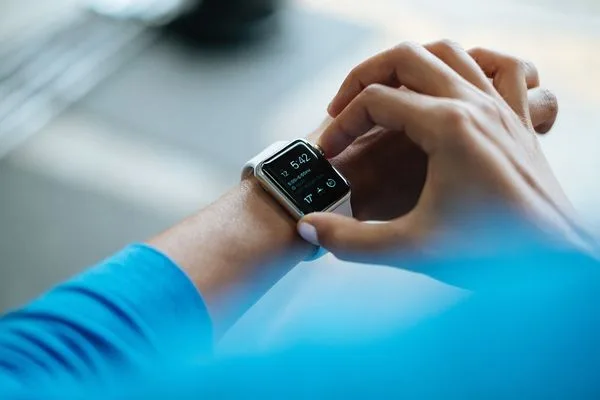
Your connected watch proudly displays "14 days of battery life" on the box. Yet, after three days, you're already charging it. This scene is familiar to millions of users. The gap between the marketing promise and everyday reality rarely comes down to the battery itself, but to an accumulation of default settings that no one takes the time to adjust.
According to Triathlete, notifications and interactions with the screen are the biggest source of consumption for most watches. WIRED confirms that Apple and Wear OS watches can go from a grueling one day to a comfortable two days by changing a few settings. Even models known for their endurance, such as the Garmin Epix Gen 2 tested by Base-mag or the Amazfit Bip 6 and its advertised 14 days, see their battery life melt away if the factory settings are kept.
Here are ten concrete settings, validated by tests and official guides, to gain hours without sacrificing what matters.
> Summary: the 4 most effective levers
> - Cutting unnecessary notifications can gain more than a day on some models (Triathlete).
> - Disabling the always-on display and choosing a sober watch face reduces the consumption of the OLED screen, which is the second biggest source (MakeUseOf).
> - Limiting background GPS and continuous sensors prevents silent drain (Cosmotogether).
> - Power-saving mode limits performance but significantly extends battery life (Samsung).
The 10 settings that really work
1. Cut non-essential notifications (and keep only the ones that matter)
The first cause of rapid drain is not the screen, nor the GPS: it's the vibrations and screen wake-ups triggered by every notification. Triathlete says it clearly: "For everyday battery life, notifications and the way you interact with the watch have a huge impact on its duration." Each alert wakes the screen, activates the haptic motor and strains the processor. If you receive 150 notifications a day, that can amount to hundreds of micro-consumptions.
What not to do: let all apps send alerts by default. Social networks, promotions and games are rarely urgent. They drain the battery for almost no benefit.
How to adjust: on Apple Watch, open the Watch app on iPhone, go to Notifications, and disable everything except Messages, Phone, Calendar and possibly your favorite messaging apps. On Wear OS, use the scheduled Do Not Disturb mode at night and limit apps in the notification settings. On Garmin watches, the Garmin Connect app lets you choose which apps can send alerts.
Expected result: up to 20-30% extra battery life on some models, according to user feedback reported by Triathlete.
2. Disable the always-on display (Always-On Display) or choose a sober watch face
The AMOLED screen is magnificent, but every lit pixel consumes energy. MakeUseOf reminds us that OLED screens save energy when pixels are off. A watch face with lots of bright colors, animations or complications (weather, heart rate, notifications) keeps hundreds of pixels lit continuously if the Always-On Display is active.
What not to do: enable the Always-On Display with an animated or color-rich watch face. It's the worst combo for the battery. WIRED points out that the always-on display can reduce battery life by 30 to 50% depending on the model.
What to do: disable the Always-On Display and use the "raise-to-wake" mode, which only turns on the screen when you look at it. If you absolutely insist on the always-on display, choose a minimalist black-and-white watch face with few complications. On Samsung watches, the Always On Display feature is disabled in Settings > Display. On Apple Watch, Settings > Brightness and display > Always on.
3. Reduce brightness and enable adaptive brightness
Maximum brightness is useful in direct sunlight, but rarely necessary indoors. WIRED recommends reducing screen brightness and enabling automatic brightness if available. Too high a brightness forces the backlight (or OLED pixels) to consume more, especially when the screen turns on frequently.
What not to do: leave brightness at 100% permanently. Many users set brightness once and never think about it again.
Concrete action: on most watches, swipe down to access quick settings and reduce brightness to around 50%. Enable adaptive brightness so the watch adjusts automatically to ambient light. On Garmin, the setting is found in System > Backlight and lets you disable the backlight during the day if the screen is readable.
4. Limit GPS and background location
GPS is one of the biggest power consumers. Cosmotogether explains that the watch updates location in the background at regular intervals, which drains the battery even when you don't start an activity. If you don't use a continuous tracking or mapping app, there's no need to leave GPS active.
What not to do: allow all apps to access location in the background. In particular, weather or fitness apps that request constant location without real necessity.
How to optimize: in the watch settings, look for "Location" or "GPS" and choose "Only during activity" or "Never" for non-essential apps. On Cosmo (watches for children or seniors), the guide recommends changing the frequency of background location updates to save battery. For athletes, Triathlete advises using power-saving GPS modes (such as UltraTrac on Garmin) during long outings where meter-level accuracy is not critical.
5. Use power saving mode (but know what it sacrifices)
All modern watches have a power saving mode. Samsung states that power saving mode "saves battery while slightly reducing your Galaxy Watch's performance." This mode often disables Always-On Display, reduces brightness, limits vibrations and can even cut Wi-Fi and Bluetooth.
What not to do: enable power saving mode permanently without knowing which functions are disabled. You risk missing important notifications or losing continuous heart rate tracking.
Best practice: enable power saving mode when the battery drops below 20% or when you know you'll be far from a charger for a long time. On Apple Watch, it's the "Power Reserve" mode that leaves only the time. On Wear OS, Battery Saver mode is accessible in quick settings. On Garmin, "Battery Saver" mode can be configured to trigger automatically at a certain percentage.
6. Optimize health sensors (heart rate, SpO2, stress)
Continuous monitoring of heart rate, blood oxygen (SpO2) or stress is very demanding. Base-mag notes in its review of the Garmin Epix Gen 2 that the advertised battery life assumes specific settings; if you enable all sensors continuously, the duration drops. Most watches offer to measure heart rate every minute, every 10 minutes or only during exercise.
What not to do: leave SpO2 measurement continuous (during the night and day) if you don't have a respiratory problem. It's one of the most energy-hungry settings.
Recommended setting: switch heart rate to "smart" mode (periodic measurement) rather than "continuous." Disable automatic SpO2 and only measure it on demand. On Garmin, go to Sensors > Pulse Oximeter and set it to "Manual." On Apple Watch, SpO2 is measured periodically, but you can limit background measurements by disabling monitoring in the Health app.
7. Turn off Wi-Fi, Bluetooth, and NFC when you are not using them
Wi-Fi is handy for updates and transferring music, but it stays active even when the watch is connected to the phone via Bluetooth, which doubles network consumption. WIRED recommends turning off Wi-Fi if you do not need it. NFC for contactless payments can also be turned off if you do not pay with the watch.
What not to do: completely disable Bluetooth all the time, because the watch will constantly reconnect and consume more. Bluetooth Low Energy is fairly power-efficient; Wi-Fi and NFC are less so.
Tip: on most watches, Wi-Fi is enabled by default. Go to the connection settings and turn it off, unless you stream music or install updates without a phone. On Samsung, Settings > Connections > Wi-Fi. On Apple Watch, Settings > Wi-Fi and turn it off. Turn it back on temporarily if needed.
8. Choose a simple watch face and avoid poorly optimized third-party apps
MakeUseOf insists: "OLED screens save energy when pixels are off." A watch face loaded with many complications (weather, calendar, activity, notifications) forces the screen to display more lit pixels, and complications update in the background, taxing the processor. Third-party watch faces are often less optimized than the manufacturer's.
What not to do: install an animated watch face with 3D effects or frequent updates. Not only does it consume power on the screen, but it also taxes the sensors and the connection.
Recommendation: opt for a minimalist native watch face, preferably with a black background and few colors. On Apple Watch, the "Meridian" or "Simple" watch face in black is power-efficient. On Wear OS, choose a sober watch face from the official gallery. On Garmin, use the default watch face, which is generally optimized.
9. Reduce haptic feedback and sounds
Vibrations and sounds consume energy every time they trigger. If you receive a lot of notifications (even after filtering them), repeated vibrations wear down the battery. WIRED suggests reducing vibrations or disabling them for non-critical alerts.
What not to do: leave strong haptic feedback (such as hourly activity alerts) and app sounds on. On some watches, haptic feedback for every step or every message can represent significant consumption.
Action: disable haptic feedback for touch interactions and reduce vibration intensity. On Apple Watch, Settings > Sounds & Haptics. On Wear OS, Settings > Vibration. On Garmin, System > Haptic Feedback.
10. Schedule theater, night, or do not disturb mode during periods of inactivity
At night, you do not need the screen to turn on with every movement. Many watches have a "Theater" or "Night" mode that turns off the screen unless you press a button. This prevents unwanted wake-ups when you move in your sleep.
What not to do: leave the screen in "raise to wake" mode during the night; the slightest arm movement turns on the screen and drains the battery.
Setting: enable Do Not Disturb and Theater mode before sleeping, or schedule an automatic time range. On Apple Watch, Theater mode is enabled in Control Center (masks icon). On Wear OS, use Bedtime mode. On Garmin, set "Do Not Disturb during Sleep" in Garmin Connect.
Summary table of settings and their impact
| Setting | Impact on battery life | Difficulty | What you sacrifice |
|---------|------------------------|------------|----------------------|
| 1. Notifications | High | Easy | Secondary alerts |
| 2. Always-On Display | High | Easy | Permanent display |
| 3. Brightness | Medium | Very easy | Readability in direct sunlight |
| 4. Background GPS | High | Medium | Continuous location tracking |
| 5. Power saving mode | High | Very easy | Performance, some functions |
| 6. Health sensors | Medium | Easy | Continuous measurements (SpO2, stress) |
| 7. Wi-Fi/Bluetooth/NFC | Medium | Easy | Connectivity without a phone |
| 8. Simple watch face | Medium | Easy | Aesthetics and complications |
| 9. Haptic feedback | Low | Very easy | Tactile sensations |
| 10. Night/theater mode | Medium | Easy | Automatic wake-up at night |
What these settings will not replace
Even with these ten adjustments, battery life will always depend on the physical capacity of the battery and how you use it. The Amazfit Bip 6 claims 14 days in "typical use," but that duration assumes power-saving settings and moderate use. The Garmin Epix Gen 2 tested by Base-mag shows that a high-end watch can last several days if you disable the Always-On Display and limit GPS. On the other hand, if you use GPS continuously for long outings, expect the battery to drain in a few hours, regardless of the brand.
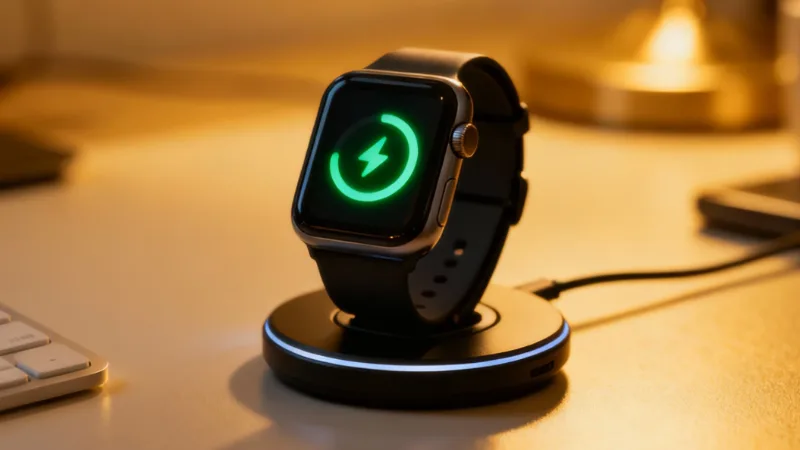
The important thing is to understand that battery life is not a fixed figure: it is a variable that you largely control. Default settings are often designed to show off all the watch's capabilities, not to save battery. By taking ten minutes to adjust these parameters, you can gain half a day, or even a full day, without losing essential functions.
The next time your watch dies at 6 p.m., remember that the culprit is probably not the battery itself, but an accumulation of small power-hungry settings. Start with notifications, the screen, and GPS: these are the three levers with the most impact.
Further reading
- Base-mag – Garmin Epix Gen 2 review – Analysis of performance and everyday battery life.
- Cosmotogether – Maximizing battery life – Guide to optimizing background location.
- Triathlete – Smartwatch Battery Tips – Expert advice for heavy users.
- Amazfit Bip 6 – Product page – Example of a watch with a claimed long battery life.
- Samsung – Battery tips – Official advice for Galaxy watches.
- WIRED – How to Save Your Smartwatch's Battery Life – Recommendations for Apple Watch and Wear OS.
- MakeUseOf – Simple Fix for Battery Life – The impact of the watch face and OLED pixels.