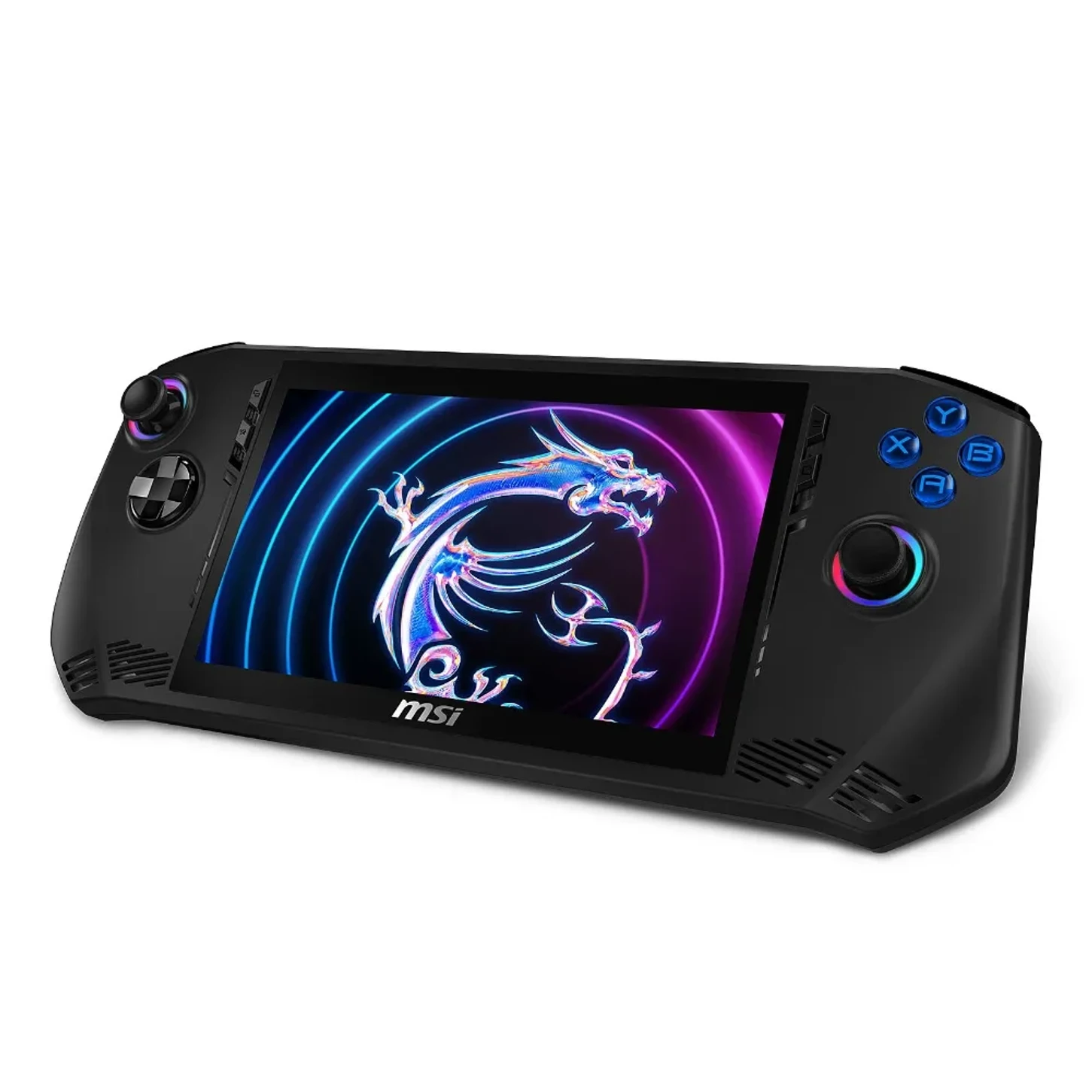
Emulation has become an essential tool for developers, gamers, and digital professionals, allowing software designed for one platform to run on another. With the rapid evolution of technologies, optimizing performance and graphics is crucial for a smooth user experience. This article explores the challenges and solutions for emulation on PC and mobile devices, relying on verified sources to guide you in your projects.
Why Optimize Emulation Today?
Why focus on emulation today? It opens the door to greater software compatibility, whether for playing mobile games on PC or testing applications across different environments. However, as highlighted in a Reddit discussion, modern emulators often struggle to exceed 20 frames per second, even on powerful PCs, making optimization essential. In this article, we will cover the basics of emulation, compare performance on PC and mobile, and share practical tips to maximize efficiency.
Understanding the Challenges of Modern Emulation
Emulation involves reproducing the behavior of one system on another, which requires significant computing power. For example, emulating an ARM processor on an x86 PC involves real-time translation of instructions, which can slow down performance. A simple analogy: it's like an interpreter having to translate a live conversation—the more complex the language, the greater the effort. According to a report shared on X, ARM architectures (like those in smartphones) and x86 (common on PCs) have different profiles, with ARM designed for high-performance devices, complicating cross-emulation.
Sources indicate that modern emulators, such as those for Android on Windows, are often used for gaming, offering better performance and larger screens. However, a Reddit thread notes that even with a powerful PC, many titles struggle to achieve stable frame rates. This is explained by the growing complexity of emulated systems, which require increased resources for accurate hardware simulation.
Performance Optimization Guide for PC
On PC, emulation optimization relies on hardware and software configuration. The Dolphin Emulator performance guide, for example, recommends specific configurations for desktop computers, emphasizing the processor and graphics card.
Recommended Hardware Configuration
Here are the key criteria to improve performance on PC:
- Processor: Prioritize multi-core models with high frequency, as emulation is often CPU-intensive
- RAM: At least 8 GB is recommended to avoid bottlenecks
- Graphics Card: Dedicated GPUs help manage complex graphic rendering
- Storage: SSDs offer faster loading times than traditional hard drives
Detailed Comparison of Android Emulators for PC
A comparative table based on online discussions shows that options like those mentioned on Africacdc can vary in lightness and performance:
| Emulator | Performance | Typical Usage | Recommended Configuration |
|---------------|-----------------|--------------------------|-------------------------------|
| BlueStacks | High | Gaming and applications | 4 GB RAM, 4-core CPU |
| NoxPlayer | Medium-High | Gaming and development | 2 GB RAM, 2-core CPU |
| LDPlayer | High | Intensive gaming | 4 GB RAM, dedicated GPU |
| Genymotion | Medium | Development and tests | 2 GB RAM, standard CPU |
Note: Specific data varies; consult sources for detailed recommendations.
Step-by-Step Guide: Software Optimization Settings
In practice, adjusting graphic settings in emulators can significantly improve smoothness. Here is a detailed procedure:
- Reduce display resolution: Start by lowering the resolution to 720p or 1080p depending on your configuration
- Disable visual effects: Turn off shadows, reflections, and post-processing effects
- Adjust CPU settings: Limit processor usage to 70-80% to avoid overheating
- Optimize memory: Allocate 2-4 GB of RAM according to your needs
- Update drivers: Regularly check for graphics driver updates
The Dolphin guide also suggests customizing graphic settings to balance performance and visual quality.

Advanced Optimization for Mobile Devices
On mobile, emulation is often used to run applications or games designed for other platforms, but limited resources pose unique challenges.
Mobile-Specific Challenges
In Roblox development, mobile optimizations aim to reduce CPU usage, as older phones have lower capabilities than PCs. A discussion on the Roblox Devforum emphasizes the importance of minimizing processor load to ensure acceptable performance on less powerful devices.
Practical Guide: Mobile Optimization Tips
Emulators on mobile require configuration adapted to battery and thermal constraints:
- Battery management: Enable power-saving modes to extend battery life during long sessions
- Cooling: Avoid overheating by limiting background applications
- System settings: Adjust process priority to favor the emulator
- Regular cleaning: Delete temporary files and cache regularly
Mobile Troubleshooting Procedure
If you encounter performance issues on mobile:
- Check available storage space (minimum 2 GB recommended)
- Close all background applications
- Restart the device to free up memory
- Check for emulator updates
- Test with different graphic settings
Configuration Guide: Comparison of PC and Mobile Approaches
Fundamental Differences
The fundamental difference between emulation on PC and mobile lies in the available resources:
- PC: More computing power and memory, allowing for more faithful emulation
- Mobile: Energy and hardware limitations requiring compromises
Comparative Table of Optimal Configurations
| Aspect | Ideal PC Configuration | Ideal Mobile Configuration |
|------------|-----------------------------|---------------------------------|
| Processor | Intel i5/i7 or AMD Ryzen 5/7 | Snapdragon 8 Gen 2 or equivalent |
| Memory | 8-16 GB RAM | 6-8 GB RAM |
| Graphics | Dedicated GPU 4 GB+ | Integrated GPU with Vulkan support |
| Storage | 256 GB+ SSD | 128 GB+ UFS 3.1 storage |
Specific Use Cases
In the gaming field, Android emulators on PC, like those cited by Africacdc, offer advantages such as:
- Larger screens
- Better graphic performance
- Optimized PC controls
In contrast, on mobile, emulation is often reserved for specific cases:
- Development applications
- Light games
- Compatibility testing
Expert Guide: Practical Tips for Successful Emulation
General Best Practices
To maximize emulation efficiency, here is a list of best practices, drawn from sources:
- Update drivers: Ensure graphics and system drivers are up to date to benefit from the latest optimizations
- Experiment with settings: Test different configurations in emulators to find the right balance between performance and quality
- Monitor resources: Use monitoring tools to identify bottlenecks, such as excessive CPU or RAM usage
- Consult online communities: Forums like Reddit or devboards offer valuable feedback for solving specific problems
Performance Monitoring Procedure
- Install a resource monitor (like MSI Afterburner for PC)
- Launch your emulator and observe CPU/GPU/RAM usage
- Identify components reaching 100% utilization
- Adjust settings accordingly
- Test again and compare results
Concrete Application Examples
If you use an emulator to test a VR application, as mentioned in a VRChat discussion, check world and avatar compatibility to avoid crashes. Similarly, for Roblox, optimize scripts and assets to reduce the load on mobile devices.

Advanced Troubleshooting Guide

Common Problems and Solutions
Problem: Slow emulation even with good hardware
- Solution: Check memory allocation settings and reduce graphic effects
Problem: Frequent crashes
- Solution: Update the emulator and drivers, check compatibility
Problem: Overheating on mobile
- Solution: Reduce resolution, enable power-saving mode
Quick Verification Checklist
- [ ] Graphics drivers up to date
- [ ] Sufficient storage space
- [ ] Emulator settings optimized
- [ ] Background applications closed
- [ ] Operating system up to date
Advanced Optimization Strategies for Developers
Optimized Development Techniques
For developers working with emulation, several strategies can significantly improve performance:
- Asset optimization: Compress textures and reduce 3D model polycount
- Efficient memory management: Implement object pooling and garbage collection systems
- Smart multithreading: Distribute computational load across multiple processor cores
- Regular profiling: Use tools like Android Profiler to identify bottlenecks
Configuration Examples for Different Use Cases
For mobile gaming on PC:
- Resolution: 1080p
- Allocated RAM: 4 GB
- CPU cores: 4
- GPU: Performance mode
For application development:
- Resolution: 720p
- Allocated RAM: 2 GB
- CPU cores: 2
- GPU: Balanced mode
Graphics Performance Optimization
Essential Graphics Settings
To achieve the best graphics while maintaining smooth performance, focus on these key settings:
- Render Resolution: Adjust according to your hardware (720p for mobile, 1080p+ for PC)
- Texture Filtering: Disable anisotropy to gain performance
- Antialiasing: Reduce or disable to improve fluidity
- Shadows and Lighting: Limit these resource-intensive effects
Graphics Optimization Table by Platform
| Setting | PC (Performance) | Mobile (Balance) | PC (Quality) |
|---------------|----------------------|------------------------|------------------|
| Resolution | 1080p | 720p | 1440p+ |
| Antialiasing | Disabled | 2x | 4x+ |
| Shadows | Low | Disabled | High |
| Filtering | Bilinear | Bilinear | Anisotropic 16x |
Advanced System Optimization Techniques
Operating System Optimization
To maximize emulation performance, also optimize your operating system:
- Close unnecessary applications running in the background
- Adjust power settings for performance mode
- Disable non-essential system visual effects
- Free up disk space for temporary files
System Resource Management
- Real-time monitoring of CPU, GPU, and RAM usage
- Process prioritization to favor the emulator
- Thermal management to avoid throttling
- Network optimization for online emulators
CPU and GPU Performance Optimization
Advanced Processor Configuration
CPU optimization is crucial for emulation. Here are the key settings to consider:
- Clock Frequency: Prioritize processors with higher frequencies
- Number of Cores: 4 to 8 cores offer a good balance for most emulators
- L3 Cache: A larger cache improves instruction translation performance
- Specific Technologies: Intel VT-x and AMD-V improve virtualization performance
Graphics Card Optimization
For graphics, focus on these aspects:
- Graphics API: Prefer Vulkan or DirectX 12 when available
- Video Memory: 4 GB minimum for modern emulations
- Drivers: Use stable versions rather than beta
- Specific Settings: Disable vertical sync to reduce latency
Advanced Optimization: Strategies for Maximum Performance
Advanced System Optimization Techniques
To achieve optimal performance, adopt these advanced strategies:
- Controlled Overclocking: Slightly increase CPU/GPU frequencies if your system allows it
- Proactive Thermal Management: Use effective cooling to avoid throttling
- BIOS Optimization: Adjust system settings to prioritize performance
- Dedicated Partitioning: Create a specific partition for emulation files
Optimized Hardware Configuration
For high-end configurations:
- Processor: Intel i9 or AMD Ryzen 9
- RAM: 32 GB DDR4/5
- GPU: RTX 4070 or equivalent
- Storage: 1 TB+ NVMe SSD
For budget configurations:
- Processor: Intel i3 or AMD Ryzen 3
- RAM: 16 GB DDR4
- GPU: GTX 1660 or equivalent
- Storage: 512 GB SATA SSD
Specific Emulator Optimization
Configuration for Android Emulators
Android emulators like BlueStacks and LDPlayer benefit from these optimizations:
- RAM Allocation: 4 GB minimum for intensive gaming
- CPU Cores: 4 dedicated cores for demanding games
- Resolution: 1080p for a good performance/quality balance
- Performance Mode: Enable gaming modes in settings
Configuration for Console Emulators
For emulators like Dolphin (GameCube/Wii):
- Graphics Backend: Vulkan for optimal performance
- JIT Compilation: Enable to accelerate code execution
- Texture Cache: Increase to reduce loading times
- Synchronization: Disable V-Sync to reduce latency
Conclusion: The Future of Emulation
In summary, advanced emulation requires a strategic approach to optimize performance and graphics, whether on PC or mobile. By understanding the technical challenges and applying appropriate settings, you can significantly improve your experience.
Key points to remember:
- Emulation requires significant computing power
- Optimization differs between PC and mobile
- Software settings are as important as hardware
- Online communities are valuable resources
The evolution of technologies, such as more efficient emulation engines, suggests a future where barriers between platforms could fade.
We encourage you to share your own tips in the comments and explore the resources below to delve deeper into the subject. Emulation is not just about nostalgia – it's a powerful tool for digital innovation.
To Go Further
- Africacdc - Article on the best Android emulators for Windows
- Ask Vrchat - Discussion about updates and VR device compatibility
- Devforum Roblox - Optimization guide for performance on Roblox
- Reddit - Explanation of performance challenges in modern emulation
- X - Comparison of ARM and x86 architectures for emulation
- Reddit - Recommendations for high-performance Android emulators for PC
- Dolphin-emu - Performance guide for the Dolphin emulator
- Learn Microsoft - FAQ on Surface ARM devices and Prism emulation